Configuring Internet Explorer for the Local Intranet via GPO
To configure the browser in the AGW network for the local intranet, follow these steps:
Step 1: Open the GPO Console
Open the Group Policy Management Console on the Domain Controller.

Step 2: Create or Edit a GPO
Navigate to User Configuration > Administrative Templates > Windows Components > Internet Explorer > Internet Control Panel > Security Page and configure the setting "Automatic logon with current user name and password" for the "Local Intranet" zone.
Step 3: Verify the Settings
The change will be visible in the Internet Options under "Security" > "Local intranet". The setting should look like this:
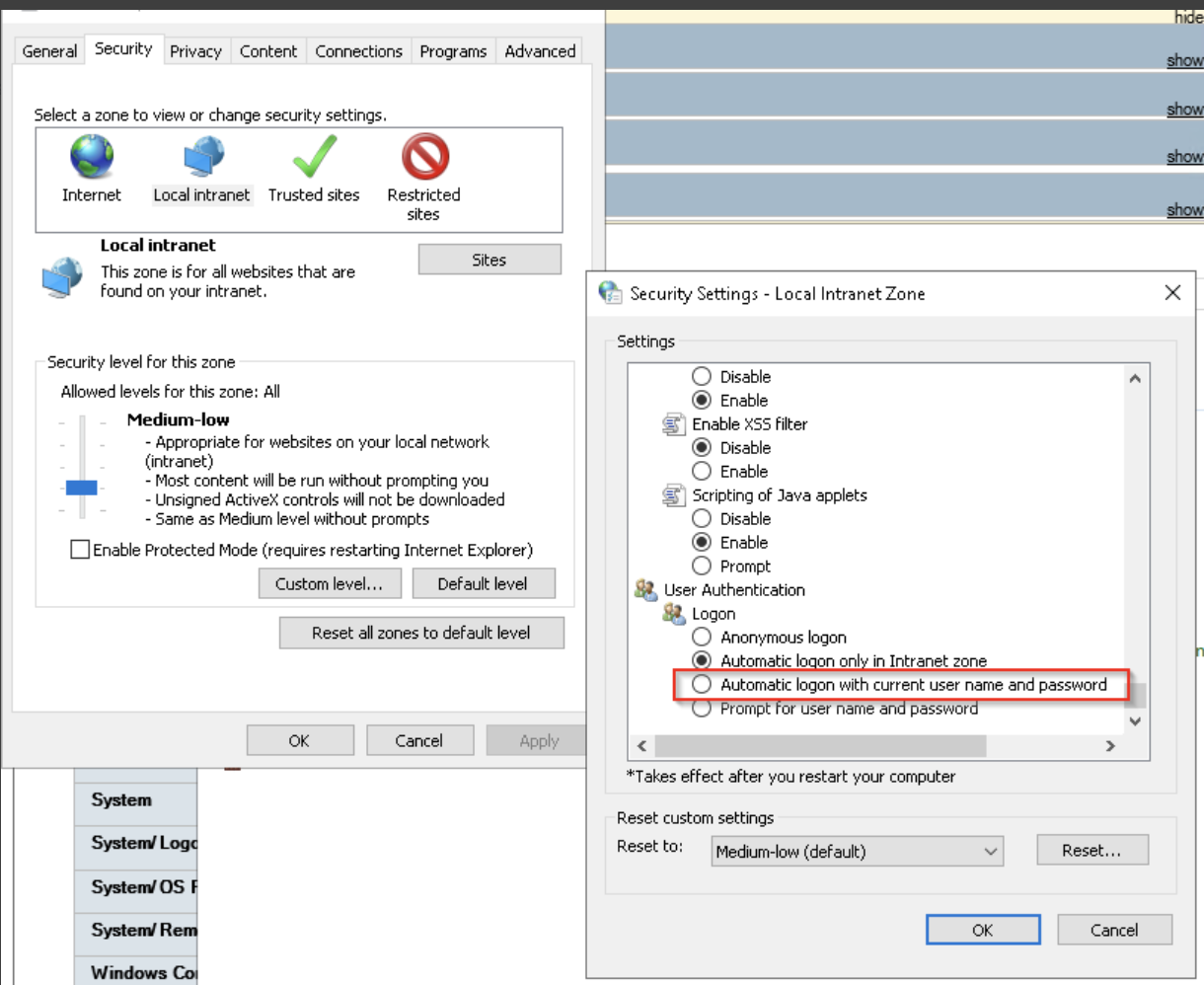
The two screenshots show:
- The Group Policy Management Console on the Domain Controller, where the GPO is configured.
- The Internet Options on the client, where the change is visible.
With this configuration, the browser will automatically log in with the user name and password when a page in the local intranet is accessed.